Model Providers
FileMind uses a language model for three things: the Ask My Library feature, metadata extraction as a fallback when identifier lookup and heuristic parsing both fail, and optional query rewriting. You can run that model entirely on your own machine — with the built-in model, Ollama, or LM Studio — or call out to a cloud provider: OpenAI, Claude, or Gemini.
This page walks through each option end to end, assuming you don't yet have an account. Pick whichever fits your privacy, cost, and quality preferences. You can change providers at any time from Settings → LLM Provider, by re-running the Setup Wizard, or by editing config.toml.
Choosing a Provider
| Provider | Where it runs | Cost | Privacy | Best for |
|---|---|---|---|---|
| Built-in model | Your machine | Free | Nothing leaves your computer | Everyone who wants zero setup. The default recommendation. |
| Ollama | Your machine | Free | Nothing leaves your computer | Choosing your own model, or a bigger one if you have the GPU for it |
| LM Studio | Your machine | Free | Nothing leaves your computer | People who already run models in LM Studio |
| OpenAI (GPT) | Cloud API | Pay per token | Snippets sent to API; not used for training by default | Strong all-rounder, broad model selection |
| Claude (Anthropic) | Cloud API | Pay per token | Snippets sent to API; not used for training | Highest extraction and Q&A quality |
| Gemini (Google) | Cloud API | Free tier; no card needed | Snippets sent to API; review Google's data-use terms for the free tier | A capable cloud model with no billing setup |
| Custom server | Wherever you run it | — | Depends on the server | llama.cpp, vLLM, Azure OpenAI, or any OpenAI-compatible endpoint |
When using a cloud provider, FileMind only sends short text snippets (titles, abstracts, or the chunks needed to answer your question) — never the full PDF. Text extraction, OCR, embeddings, search, and reranking run locally regardless of which provider you choose.
The Built-in Model
The built-in option bundles a llama.cpp server with FileMind and downloads
Qwen3-4B-Instruct-2507 (Q4_K_M, about 2.5 GB, Apache-2.0) the first time you pick it.
FileMind verifies the download against a SHA-256 checksum, starts the server on
127.0.0.1 whenever the app runs, and stops it when you quit. There is nothing to
install and no account to create.
- In the Setup Wizard, or under Settings → LLM Provider, choose Built-in model
- Click Download & Set Up (2.5 GB) and wait for Built-in model is ready
- That's it — FileMind writes the configuration itself. Settings shows the model as Running from then on
The model file lives in %APPDATA%\FileMind\models. If your machine cannot run it —
the wizard tells you — choose another card. Gemini's free tier is the quickest alternative.
Setting Up Ollama (Local)
Ollama is a free, open-source runtime that lets you run large language models on your own machine. Everything stays on your computer — no account, no API key, no internet connection required after the model is downloaded. Choose it over the built-in model when you want to pick a specific model, or a larger one than 4B.
Step 1 — Check your hardware
Local models use RAM (and a GPU, if you have one). FileMind's catalog is hardware-aware: it reads
your GPU memory and recommends gemma4:12b at roughly 12 GB of VRAM or more, and
mistral otherwise. As a rough guide:
| Model | Download | Needs |
|---|---|---|
llama3.2 | ~2 GB | 8 GB RAM |
qwen3:4b | ~2.5 GB | 8 GB RAM |
mistral | ~4.4 GB | 8 GB RAM |
qwen3:8b | ~5.2 GB | 16 GB RAM |
gemma4:12b | ~7.6 GB | 16 GB RAM, ~12 GB VRAM |
qwen3:14b | ~9.3 GB | 32 GB RAM, 16 GB VRAM |
A dedicated NVIDIA GPU makes responses noticeably faster, but it is not required. CPU-only systems work fine, just slower.
Step 2 — Install Ollama
If Ollama is already running, FileMind detects it and preselects the card. If not, the Ollama card shows an Install Ollama button that opens the installer; FileMind keeps probing and continues automatically once Ollama is up. To install it yourself:
- Visit ollama.com/download
- Run
OllamaSetup.exeand follow the prompts - Launch Ollama once. It runs as a background service and listens on
http://localhost:11434.
Verify the install by opening a terminal and running:
ollama --versionStep 3 — Download a model
Pick a model from the catalog in the wizard or in Settings and click Pull — the download runs inside Ollama and FileMind shows its progress. Or pull one from a terminal:
# Fast default
ollama pull llama3.2

# Balanced everyday model
ollama pull mistral

# Best-grounded answers, needs ~12 GB VRAM
ollama pull gemma4:12b
Confirm the model is available:
ollama listStep 4 — Point FileMind at Ollama
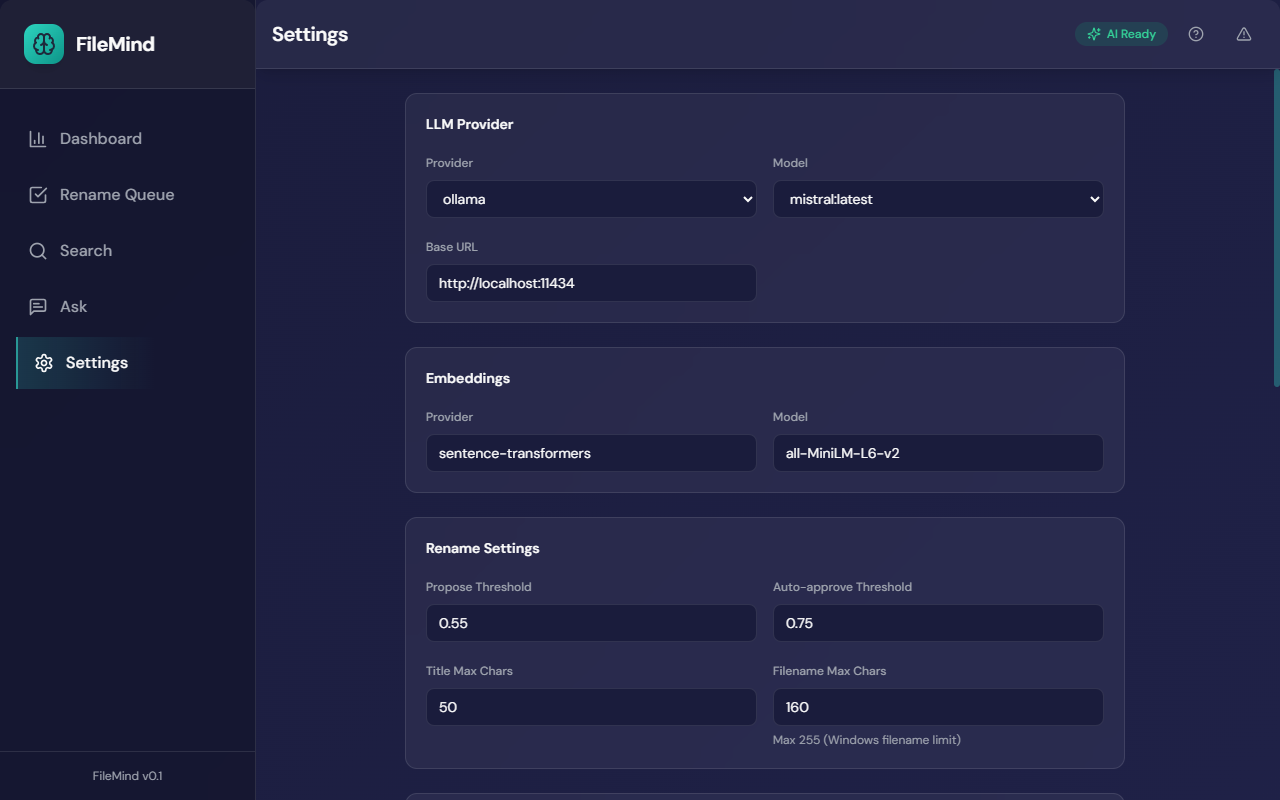
Open Settings → LLM Provider, choose ollama, and pick the
model you pulled. Or edit config.toml directly:
[llm]
provider = "ollama"
model = "llama3.2"
base_url = "http://localhost:11434"  # default — only set if you customized Ollama's port
temperature = 0.1
timeout_seconds = 120
Step 5 — Verify
- Click Test Connection in Settings → LLM Provider, or in the wizard
- Ask a question on the Ask screen — the header badge reads AI Ready when the model is connected
If the test fails, see the Ollama troubleshooting section.
The most common issue is that the Ollama service isn't running — open a terminal and run
ollama serve to start it manually.
Thinking mode. Some Ollama models (gemma4, qwen3) can "think" before answering. Leave Thinking mode on Auto in Settings: FileMind turns thinking off for the model families that need it, because with thinking on those models spend their entire answer budget reasoning and Ask returns nothing.
Setting Up LM Studio (Local)
LM Studio is a desktop app for running local models with a built-in OpenAI-compatible server. If that server is running, the wizard shows a detected local server banner and can use it with one click.
- Install LM Studio from lmstudio.ai — the LM Studio card in the wizard links there too
- Download a model inside LM Studio and load it
- Start LM Studio's local server (the default address is
http://localhost:1234/v1) - In FileMind, choose the LM Studio card, or Custom server with that base URL, and click Test Connection
The equivalent config.toml:
[llm]
provider = "llamacpp"                   # any OpenAI-compatible server
base_url = "http://localhost:1234/v1"
model = "the-model-id-shown-by-lm-studio"
Setting Up OpenAI (GPT)
OpenAI's GPT models are a strong all-rounder and offer a wide selection from very cheap
(gpt-5.4-mini) to top-tier (gpt-5.4). Setup takes about five minutes.
Step 1 — Create an OpenAI Platform account
- Go to platform.openai.com/signup
- Sign up with email, Google, Microsoft, or Apple
- Verify your email address
- Verify a phone number — required to unlock API access
- Complete the onboarding (name, organization name, intended use)
This is the developer Platform, separate from a ChatGPT Plus subscription. ChatGPT Plus does not include API credits.
Step 2 — Add billing and prepay for credits
OpenAI's API uses prepaid credits. You must add a payment method and buy a starting balance before any API call will succeed.
- Open Settings → Billing
- Click Add payment method and enter a card
- Click Add to credit balance and purchase $5–$10 to start
- Optional: enable Auto recharge so scans don't pause when the balance runs low
Step 3 — Generate an API key
- Go to platform.openai.com/api-keys — the Get API key button in FileMind opens this page
- Click Create new secret key
- Name it (e.g.
filemind-laptop) and, optionally, restrict permissions to model capabilities only - Copy the key immediately — it begins with
sk-(orsk-proj-) and is only shown once. Lost keys must be revoked and recreated.
Step 4 — Point FileMind at OpenAI
Choose the OpenAI card, paste the key, and pick a model. FileMind tests the key
as soon as it is pasted and only saves it if the test passes. Or edit config.toml:
[llm]
provider = "openai"
model = "gpt-5.4"
api_key = "sk-..."
temperature = 0.1
timeout_seconds = 120
Suggested models:
gpt-5.4-mini— cheapest; ideal for metadata extraction at scalegpt-5.4— strong default for both extraction and Ask My Library
The model list is fetched live from your account when the key is valid, so newer models appear
as soon as your key has access. To use an Azure OpenAI deployment, set base_url to
the OpenAI-compatible URL. Prefer not to write the key into config.toml? Set the
environment variable FILEMIND_LLM__API_KEY instead.
Step 5 — Verify and cap spend
- Click Test Connection in Settings → LLM Provider
- Set a Monthly spend limit under Settings → AI Usage & Spend Limit (see below)
- Optionally set a hard budget on OpenAI's side at Settings → Limits as well
Setting Up Claude (Anthropic)
Anthropic's Claude models tend to produce the highest-quality metadata extraction and citations in Ask My Library. You'll need to create an account, add a payment method, and generate an API key — total time, about five minutes.
Step 1 — Create an Anthropic account
- Go to console.anthropic.com
- Click Sign up and register with email or Google
- Verify your email address from the confirmation message
- Complete the short onboarding form (name, organization, intended use)
Note: this is the API console, not the consumer Claude.ai chat product. They use separate accounts and separate billing — a Claude.ai subscription does not include API access.
Step 2 — Add billing and credits
- In the console, open Settings → Billing
- Add a credit or debit card
- Purchase a starting credit balance — $5–$10 is plenty to evaluate FileMind on a typical library
- Optional: enable auto-reload so usage doesn't stop mid-scan
Step 3 — Generate an API key
- In the console, open Settings → API Keys — the Get API key button in FileMind opens this page
- Click Create Key
- Give the key a descriptive name (e.g.
filemind-laptop) and create it - Copy the key immediately — it begins with
sk-ant-and is only shown once. If you lose it, you'll need to revoke it and create a new one.
Treat the key like a password. Anyone with it can spend your credits.
Step 4 — Point FileMind at Claude
Choose the Claude card, paste the key, and pick a model. Or edit
config.toml:
[llm]
provider = "anthropic"
model = "claude-sonnet-5"
anthropic_api_key = "sk-ant-..."
temperature = 0.1
timeout_seconds = 120
Suggested models:
claude-sonnet-5— best balance of quality and price; the recommended defaultclaude-haiku-4-5— cheapest and fastest; great for high-volume librariesclaude-opus-5— highest quality; reserve for tricky extraction cases
If you'd rather not paste the key into a config file, set
FILEMIND_LLM__ANTHROPIC_API_KEY as an environment variable instead — see
Environment Variable Overrides.
Step 5 — Verify and watch costs
- Click Test Connection in Settings → LLM Provider
- Set a Monthly spend limit in FileMind, and a spend limit in the Anthropic console under Billing → Limits
Typical FileMind usage is small — a few cents per hundred PDFs for metadata extraction. The bulk of cost (if any) comes from heavy Ask My Library use.
Setting Up Gemini (Google)
Google's Gemini API has a free tier that needs no credit card, which makes it the quickest cloud option to try.
- Go to aistudio.google.com/apikey — the Get API key button in FileMind opens it — and sign in with a Google account
- Click Create API key and copy the key (it begins with
AIza) - Choose the Gemini card in FileMind, paste the key, and pick a model — FileMind tests the key before saving it
[llm]
provider = "gemini"
model = "gemini-3.7-flash"
gemini_api_key = "AIza..."
Gemini model names change often; FileMind fetches the current list from your account, with a bundled fallback list for offline use. Free-tier requests are rate-limited by Google, which matters mostly for heavy Ask use.
Watching Costs: AI Usage & Spend Limit
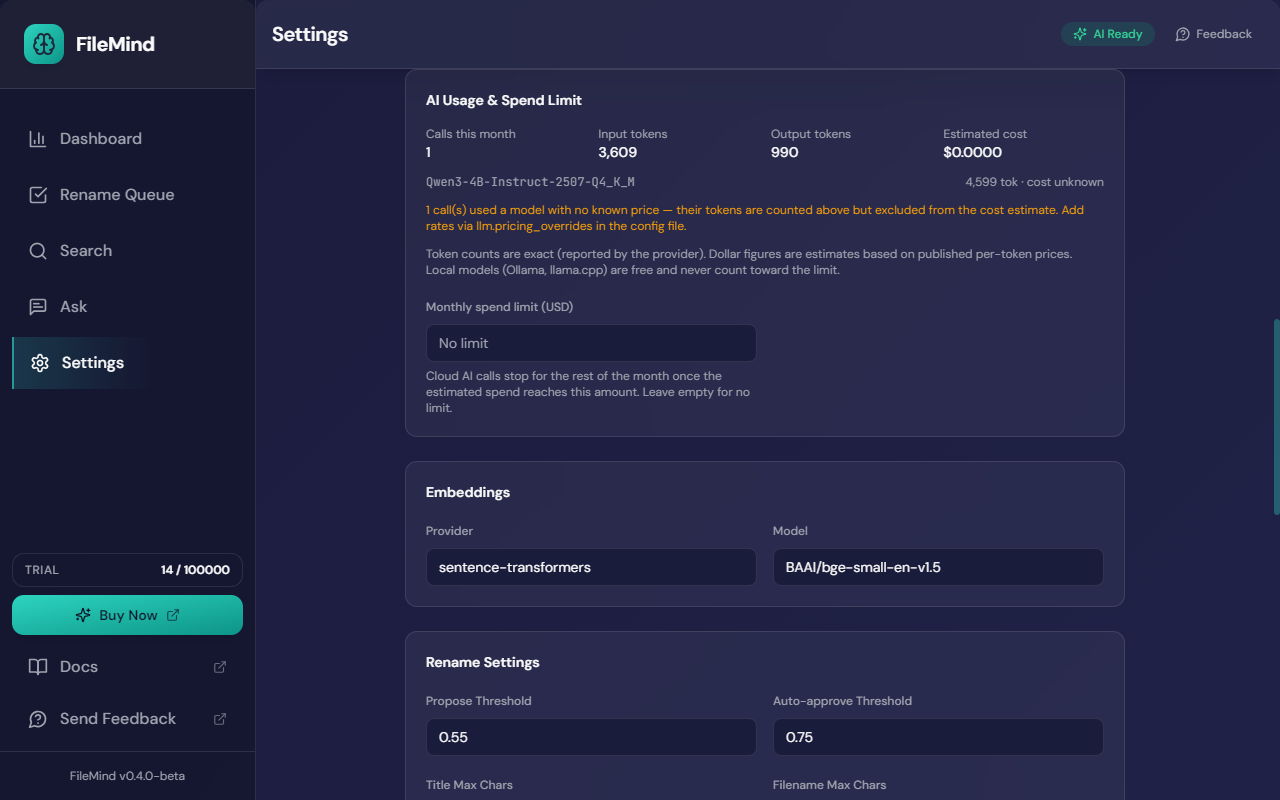
Settings → AI Usage & Spend Limit shows every cloud call this month — calls, input and output tokens, and an estimated cost from published per-token prices. Token counts are exact (reported by the provider); dollar figures are estimates. Local models are free and never count toward the limit.
Set a Monthly spend limit (USD) and cloud AI calls stop for the rest of the month
once the estimate reaches it. The same setting is spend_limit_usd in
config.toml, where you can also override the
per-token rates if the bundled table goes stale.
Switching Providers Later
You can switch providers at any time. FileMind only stores extracted metadata, embeddings, and chunk indices — none of which are tied to the model you used. After switching:
- Existing rename proposals are unaffected (they were already generated)
- New scans and proposals use the new provider
- Ask My Library answers immediately use the new provider
To run side-by-side comparisons, change the provider, ask the same question, and check the cited sources. Embeddings, search ranking, and reranking are provider-independent.
Privacy Reference
- Built-in model, Ollama, LM Studio — no network calls; everything is on-device.
- OpenAI, Claude — only the snippets needed for the current request leave your machine. Both providers state that API inputs are not used to train models by default.
- Gemini — same snippets-only rule. Google's free tier has different data-use terms from paid usage; review them if your library is sensitive.
- API keys are stored encrypted at rest using Windows DPAPI.
- Text extraction, OCR, embedding generation, hybrid search, and reranking are local in every configuration.
Next Steps
- Re-run the Setup Wizard to switch providers interactively
- All language-model configuration options
- Troubleshooting common provider issues