Export & Integration
FileMind works with every reference manager you already use. Export your library's metadata in standard formats or push it directly to Zotero.
The Export Dialog
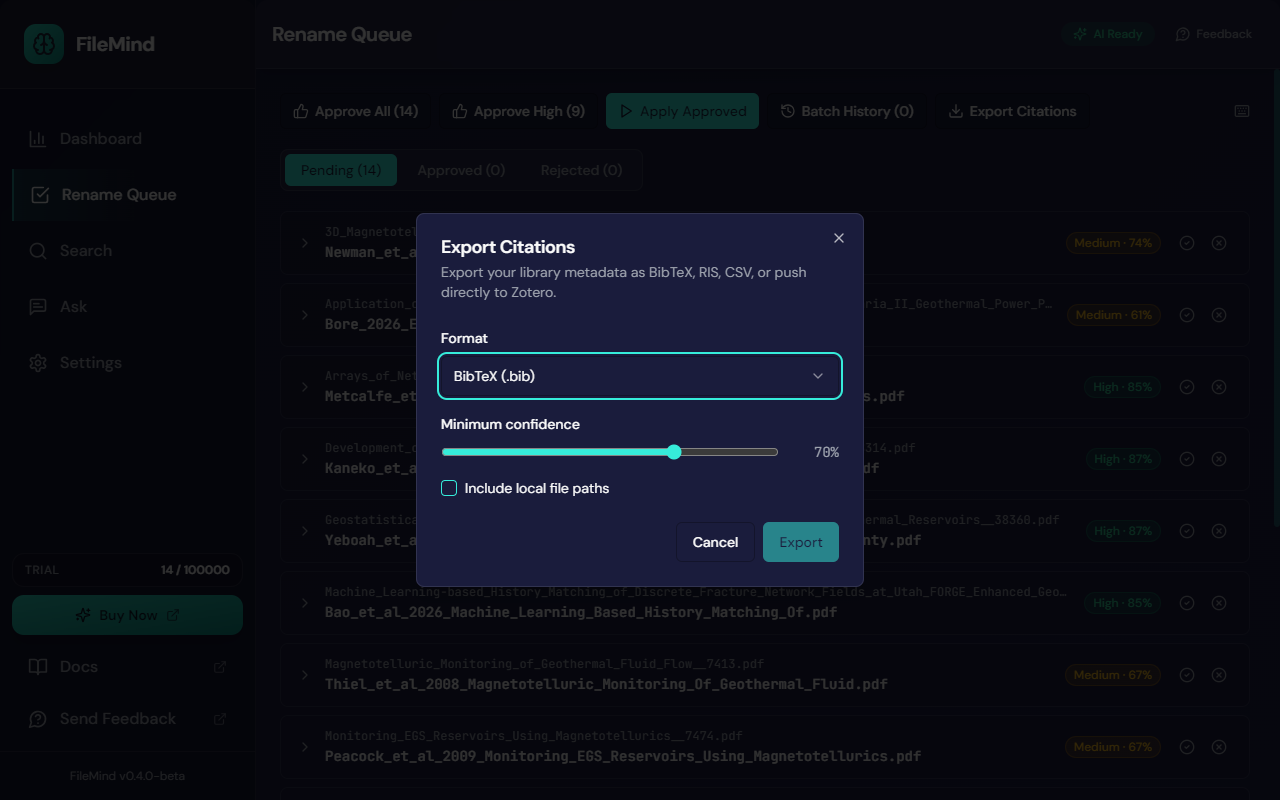
Click Export Citations on the Dashboard or in the Rename Queue. Choose a Format — BibTeX, RIS, CSV, or push to Zotero — set the Minimum confidence a record needs to be included (70% by default), and optionally Include local file paths. File exports open a save dialog; the Zotero option adds a Collection picker.
Zotero (Direct Push)
FileMind connects to Zotero through the Zotero web API. Once configured, choose Zotero as the format, pick a collection, and push.
To set up the integration:
- Create an API key at zotero.org/settings/keys with write access to your library
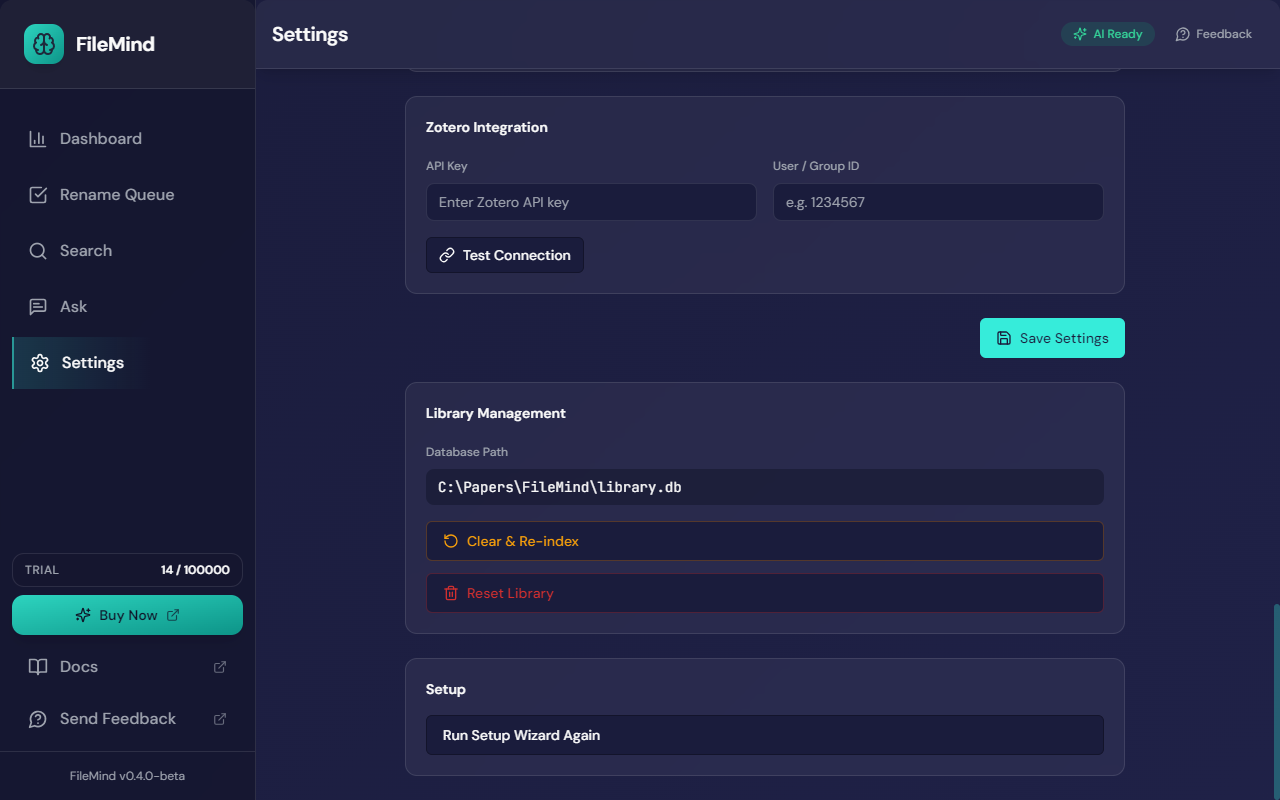
- In FileMind, open Settings → Zotero Integration
- Paste the API Key and enter your User / Group ID (shown on the same Zotero settings page)
- Click Test Connection, then Save Settings
Or configure it in your config file:
[zotero]
enabled = true
api_key = "your-zotero-api-key"
user_id = "your-user-id"
library_type = "user"          # or "group"
default_collection = ""        # optional collection key
Once your papers are in Zotero, plugins can take over from there. The Effortless Academic's roundup of the best Zotero plugins is a good place to find ones worth adding.
BibTeX Export
Export to .bib format for use with LaTeX, Overleaf, and BibTeX-compatible tools.
- Entry type:
@articleif a venue is present,@miscotherwise - Citation keys are deterministic: first author, year, and a title slug (e.g.
Newman2005ThreeDimensional) - Collision handling: appends
a,b,csuffixes if keys collide - DOI and arXiv fields included when available
RIS Export
Export to .ris format for Mendeley, EndNote, RefWorks, and other reference managers.
Entry type is JOUR if a venue is present, GEN otherwise.
CSV Export
Export all metadata fields to a spreadsheet-compatible CSV file. Useful for custom workflows, data analysis, or importing into tools that don't support BibTeX or RIS.
Quality Gates
FileMind applies quality checks before exporting to prevent garbage entries:
- Title — must be present and look like a title, not a run of digits or symbols
- Authors — at least one author must be present
- Year — must be between 1900 and next year
- Confidence — must meet the minimum you set in the dialog (default 70%)
Records that fail are listed in a skipped-records file written next to the
export (<name>_skipped.txt), with a per-record reason. Review those entries in
the Rename Queue or the paper's detail page, then export again.